tabula
Tools for Behringer X32 / Midas M32 consoles — emulator, remote GUI, show recording.
Recording a show, with its audio
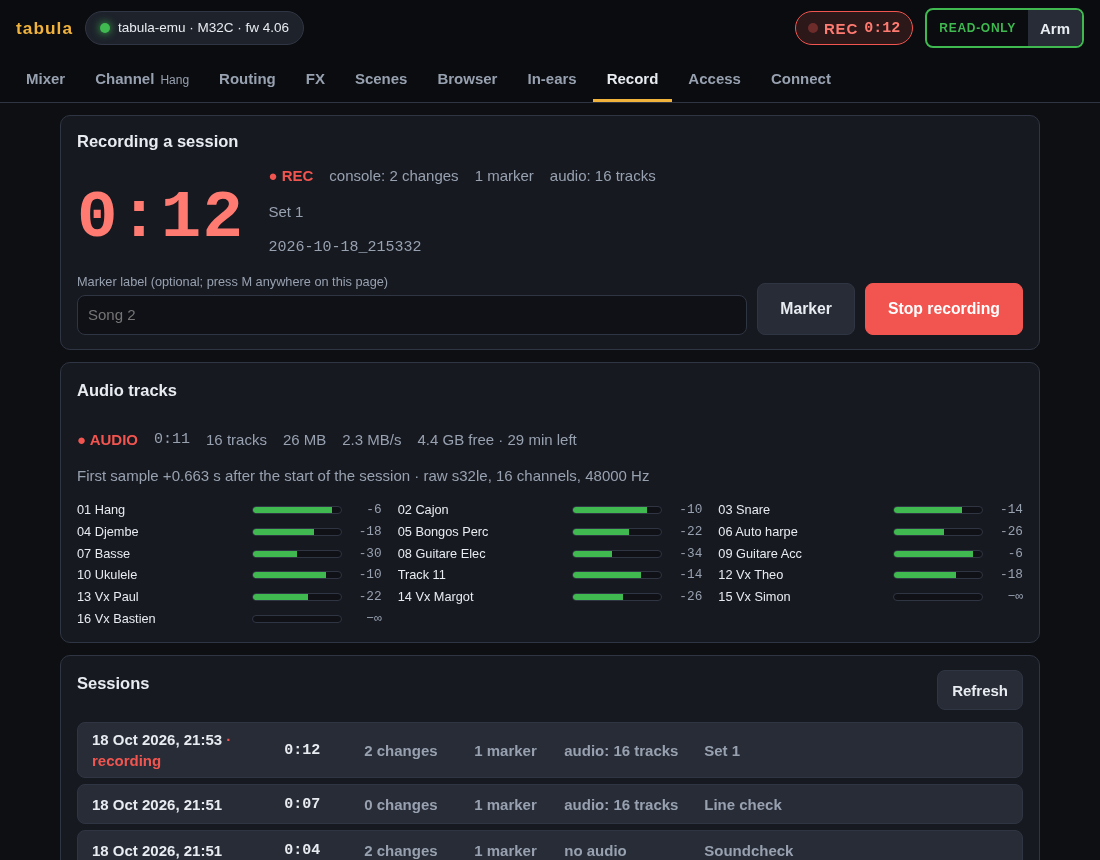
tabula records a show as a session, made of two parts:
- The console (always): its settings, not its sound. A snapshot of the console when the recording starts, every change made afterwards with its time (who moved which fader, when), and markers.
- The audio (when enabled): one WAV file per track of the console’s USB card, recorded by the same program so that the tracks and the console moves line up.
Afterwards, open the tracks in Audacity or Reaper with the markers in place, and replay the console moves onto the console or the emulator (a replay moves faders and settings; it plays no sound).
Quick start
On the Record page, in Audio tracks: tick Record the audio tracks
with every recording, choose the device (Find devices lists them; the
console’s card is marked ★), the tracks (1-16), and Save. Test the
input listens for three seconds and shows the level of every track. From
then on, Start recording records the audio too, and Stop recording
stops both.
Unattended, from the command line:
tabula -console 192.168.1.62 -record -audio-device hw:CARD=X32,DEV=0 -audio-tracks 1-16
-record starts recording once the console is synced; Ctrl-C stops the
recording and finishes the files. The settings saved from the GUI are kept
in <sessions>/audio.json and used by every later run; flags given on the
command line override them for that run.
What a session holds
sessions/2026-10-17_203000/
  meta.json        what was recorded, from which console, when; the audio section
  start.scn        the console at the start (a scene file: opens in M32-Edit)
  start.nodes      the other parameters at the start (preferences, status)
  events.jsonl     every change and marker, with its time
  audio/           01 Hang.wav, 02 Cajon.wav, … Track 11.wav, …
  2026-10-17_203000.rpp   Reaper project (written when the recording stops)
  labels.txt       Audacity label track (idem)
Each audio file is mono PCM, 24-bit by default (16 or 32 on request), at
the card’s rate (48 kHz). Files are named after the track number of the
card and what feeds it on the console: tabula follows the card’s routing
(Setup › Routing › Card Out, /config/routing/CARD) to the input, and the
input to the first channel using it as its source (/ch/NN/config/source),
whose name it takes. A card output fed by a console output takes the name
of the bus, matrix or main behind it. A track without a name is
Track 11.wav. Name the files “Track 01”… (-audio-plain-names) turns
this off, for a device that is not the console’s card.
Replaying a session
Every change in events.jsonl keeps its time, in seconds after the start
of the recording, to the nanosecond ({"t":1.088332318,"addr":"/ch/01/mix/fader",…}):
the moment tabula received it from the console, a few milliseconds after
it was made. Markers are timed the same way.
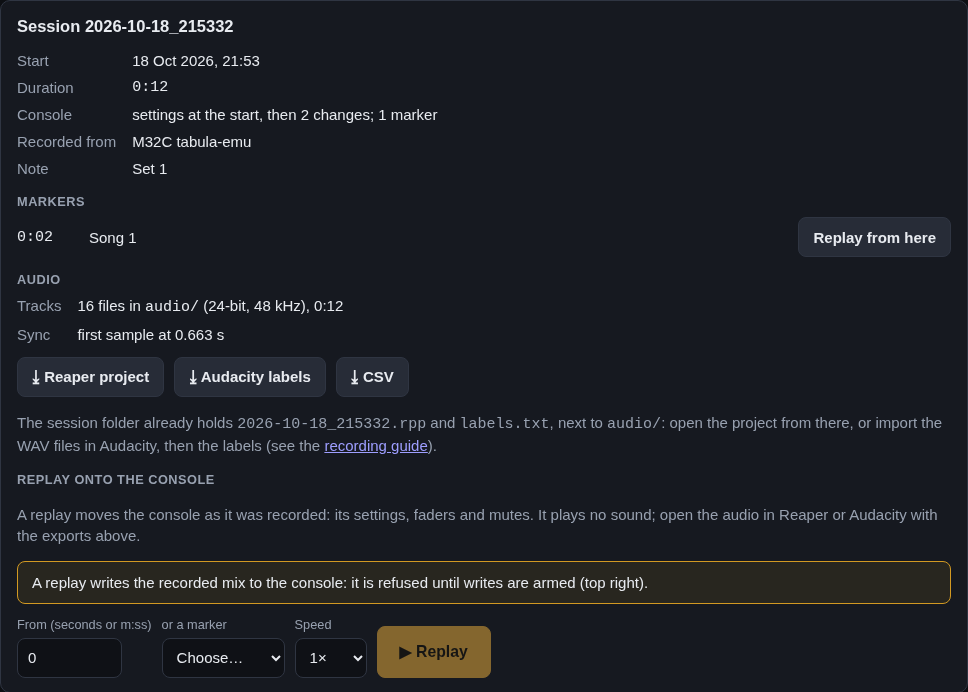
Replay onto the console (session details, on the Record page) first sets
the console as it was at the chosen time (the snapshot plus every change up
to then), then sends each later change at its recorded time: in real time at
1×, three times faster at 3× (a fader move of 3 s takes 1 s), or at
0.5×, 2×, 4× or 8×. Times are counted from the start of the replay, not from
the previous change, so a long replay does not drift: the changes arrive
within about a millisecond of their time. Start from a time (45, 12:30)
or pick a marker (Replay from here). The API takes any speed.
A replay moves the console, it plays no sound: to hear the show with its console moves, open the audio tracks with the markers (below). Writes must be armed, since a replay writes to the console.
Setting up on Linux
The console’s USB card (DN32-USB in a Midas M32, X-USB in a Behringer X32) is a class-compliant USB audio device: no driver to install. Connect it, then list the capture devices:
tabula -audio-list
RECORDER  DEVICE              CHANNELS  FORMAT           NAME
arecord   hw:CARD=PCH,DEV=0                               HDA Intel PCH, ALC892 Analog
arecord   hw:CARD=XUSB,DEV=0  32        S32_LE, 24 bits  X-USB, USB Audio  <- console card?
(an example with an X32’s card; PipeWire or PulseAudio sources follow, for
parecord. arecord -l lists the same ALSA cards; for a USB card,
/proc/asound/cardN/stream0 shows its channels, sample format and rates.)
The card sends 24-bit samples in 32-bit words (S32_LE), which tabula
records as such. The number of channels the computer sees follows the
card’s USB mode on the console (Setup › Card: 32/32, 16/16…): set
Channels of the device (-audio-channels) to what the list shows, and
the rate (-audio-rate) to the console’s (48 kHz unless the console runs at
44.1 kHz).
arecord (the default on Linux) needs the card for itself. With PipeWire or PulseAudio running, it may answer Device or resource busy. Either:
- turn the card’s profile Off while recording (pavucontrol ›
Configuration, or
pactl set-card-profile <card> off;pactl list cards shortnames the card): arecord then opens it directly — the most precise timing; or - set the card’s profile to Pro Audio and record through PipeWire with
parecord: recorder parecord (PulseAudio, PipeWire) and the source
ending in
pro-input-0(-audio-recorder parecord -audio-device alsa_input.usb-…pro-input-0).
If arecord answers Sample format non available or Channels count non
available, check the channel count; plughw:CARD=… instead of hw: lets
ALSA convert the format.
Disk space
What the files take, at 48 kHz:
| Tracks | 24-bit, per hour | two sets of 45 min, 24-bit | 16-bit, per hour |
|---|---|---|---|
| 8 | 4.1 GB | 6.2 GB | 2.8 GB |
| 16 | 8.3 GB | 12.4 GB | 5.5 GB |
| 32 | 16.6 GB | 24.9 GB | 11.1 GB |
The Record page shows the free space where sessions are kept and how much audio it holds at the chosen settings; while recording, the space left and the time left. Below 20 minutes left, a warning shows on the Record page and next to REC in the top bar. When only a minute of audio (256 MB at least) is left, the audio stops by itself, cleanly: every file ends at the same sample with a correct header, and the session (changes, markers) goes on.
If tabula or the laptop dies during the show, the files are still
readable: their headers are refreshed every two seconds, so at most the last
two seconds are missing (Audacity and Reaper read what is there). A file
past 4 GiB (a single 24-bit track gets there after 8 hours) turns into
RF64, which Audacity, Reaper and Ardour read.
How the tracks line up with the session
Session times count from the start of the recording; the audio starts a
fraction of a second later (the time to start the recorder). meta.json
keeps when the first sample was captured, in seconds after the start of the
session (offset), and the exports use it.
That time is measured, not guessed: each block of samples arrives a little
after it was captured (the recorder’s buffers, the pipe, the scheduler).
tabula notes when each block arrives and how many samples came before
it; arrival time minus samples received / rate is the capture start plus
that block’s delay, and the smallest of these over the first ten seconds is
the best estimate. What remains is the delay no block avoids — the USB
transfer and the driver, a few milliseconds. The changes of the session are
timed when the console reports them over the network, within a few
milliseconds too. Expect the tracks and the console moves to line up
within about 10 ms: much finer than a fader move.
Over a long set, the console’s audio clock and the computer’s clock drift
apart by a few tens of parts per million (20 ppm: 54 ms over 45 minutes).
tabula measures it the same way, over the whole recording, keeps it in
meta.json (drift_ppm) and the exports correct the markers for it. It is
measured once a minute of audio is recorded.
When the recorder loses samples (an overrun: the computer was too busy to
read the card in time), the tracks lag behind the session from then on by
the lost time. The Record page warns about it, meta.json counts them
(overruns) and the drift is not applied. Overruns are rare with
tabula’s settings (half a second of buffer in arecord, several seconds
more in tabula before the disk); a busy laptop on battery saver is the
usual cause.
The audio section of meta.json:
"audio": {
  "rate": 48000, "bits": 24, "channels": 32,
  "tracks": [{"channel": 1, "name": "Hang", "file": "audio/01 Hang.wav"}, …],
  "offset": 0.412308, "start": "2026-10-17T20:30:00.412308+02:00",
  "drift_ppm": 18.4, "frames": 129600000,
  "device": "hw:CARD=XUSB,DEV=0", "command": "arecord -D hw:CARD=XUSB,DEV=0 -c 32 …",
  "error": "…"
}
A change at session time t is at (t − offset) / (1 + drift_ppm·10⁻⁶)
seconds in the files.
Opening a session in an audio editor
When a recording with audio stops, the session folder gets a Reaper project and an Audacity label track. Each session in the list of the Record page also offers them as downloads, with a CSV of every change and marker:
Audacity
- File › Import › Audio…, select every file of the session’s
audio/folder: one track each, all starting at 0. - File › Import › Labels…, choose
labels.txt(from the session folder, or downloaded with Audacity labels): the markers appear as a label track, at their place in the audio.
Reaper
Open <session>.rpp from the session folder (File › Open project): one
track per file, placed where its first sample falls on the session’s
timeline, and the markers as project markers. A project downloaded with
Reaper project refers to audio/…: save it in the session folder,
next to audio/.
Ardour and others
Import the files as new tracks at the session start; the markers are in
labels.txt (times in the files) and in the CSV.
The CSV
time (session seconds), audio_time (seconds in the files), clock (date
and time), type (change or marker), address, text (the value as
the console writes it), value (raw), origin (console, local, or
web <name> for an access link), label (markers).
Command-line flags
| Flag | Default | |
|---|---|---|
-audio |
off | record the audio with every session; any -audio-… flag implies it, -audio=false turns it off for this run |
-audio-device |
recorder’s default | hw:CARD=X32,DEV=0 (arecord), a source (parecord), a device (ffmpeg) |
-audio-channels |
32 | channels the device delivers |
-audio-tracks |
all | channels to record: 1-16, 1-8,12 |
-audio-bits |
24 | 16, 24 or 32 bits per sample in the files |
-audio-rate |
48000 | sample rate |
-audio-recorder |
arecord (Linux), ffmpeg | arecord, parecord, ffmpeg or custom |
-audio-cmd |
a recorder command line (implies custom), see below | |
-audio-input |
s32le | sample format of a custom command’s raw output: s16le, s24le, s24-32le, s32le, f32le |
-audio-plain-names |
off | name the files Track 01.wav… |
-audio-list |
list the capture devices and exit |
Recorders and custom commands
tabula runs an external recorder and reads the samples from its output,
so nothing is needed at build time and the same binary runs everywhere:
| Recorder | Command |
|---|---|
| arecord | arecord -D {device} -c {channels} -r {rate} -f S32_LE -t raw --buffer-time=500000 --period-time=10000 |
| parecord | parecord --raw --format=s32le --rate={rate} --channels={channels} --no-remix --no-remap --latency-msec=20 -d {device} |
| ffmpeg (Linux) | ffmpeg … -f alsa -channels {channels} -sample_rate {rate} -i {device} -c:a pcm_s32le -f wav - |
| ffmpeg (macOS) | ffmpeg … -f avfoundation -i :{device} -c:a pcm_s32le -f wav - (device: the number -audio-list shows) |
| ffmpeg (Windows) | ffmpeg … -f dshow -channels {channels} -sample_rate {rate} -i audio={device} -c:a pcm_s32le -f wav - |
A custom command (-audio-cmd, or Custom command in the GUI) is split
into arguments like a shell would (quotes group, nothing is expanded), with
{device}, {channels} and {rate} replaced. It writes the samples on its
standard output, interleaved: raw in the -audio-input format, or a WAV
stream, whose header tabula reads and checks (channels, rate). arecord
writes raw samples on purpose: its WAV output to a pipe ends after 2 GiB.
A custom command runs a program on the machine running tabula, so only
that machine chooses one (the flag, or the GUI opened on it): an
engineer link can change the device, tracks and format, and
keep the current command, but not set a new one.
On macOS and Windows, ffmpeg records the card (it must be on the PATH). These two have not been tried with the console’s card yet; on Windows, the card’s ASIO driver is not usable by ffmpeg, and its WDM inputs may offer fewer channels.
API
See the API: the audio settings, the devices, a test of the input and the exports are engineer-only; the capture’s state rides on the record status.