tabula
Tools for Behringer X32 / Midas M32 consoles — emulator, remote GUI, show recording.
The tabula GUI
tabula serves its GUI on its HTTP port (http://localhost:8033 by
default; start it with -http :8033 to reach it from a phone or a tablet).
Every page works on a phone as well as on a laptop. Any number of browsers
can be open at once: they share the one console connection, and a change
made in one shows in the others.
Read-only until armed. Controls are greyed out until you arm writes (top right), after a confirmation. On a real console nothing moves by accident. Disarm to go back to read-only.
Who sees what. The machine running tabula is the engineer and sees
every page (once signed in, when an engineer password is set). Other
devices get a role from an access link: viewers see the
Mixer, Channel and Browser pages read-only; musicians only get their in-ear
mix. Routing, FX, Scenes, In-ears, Record, Access and Connect are engineer
pages. See access.
Mixer
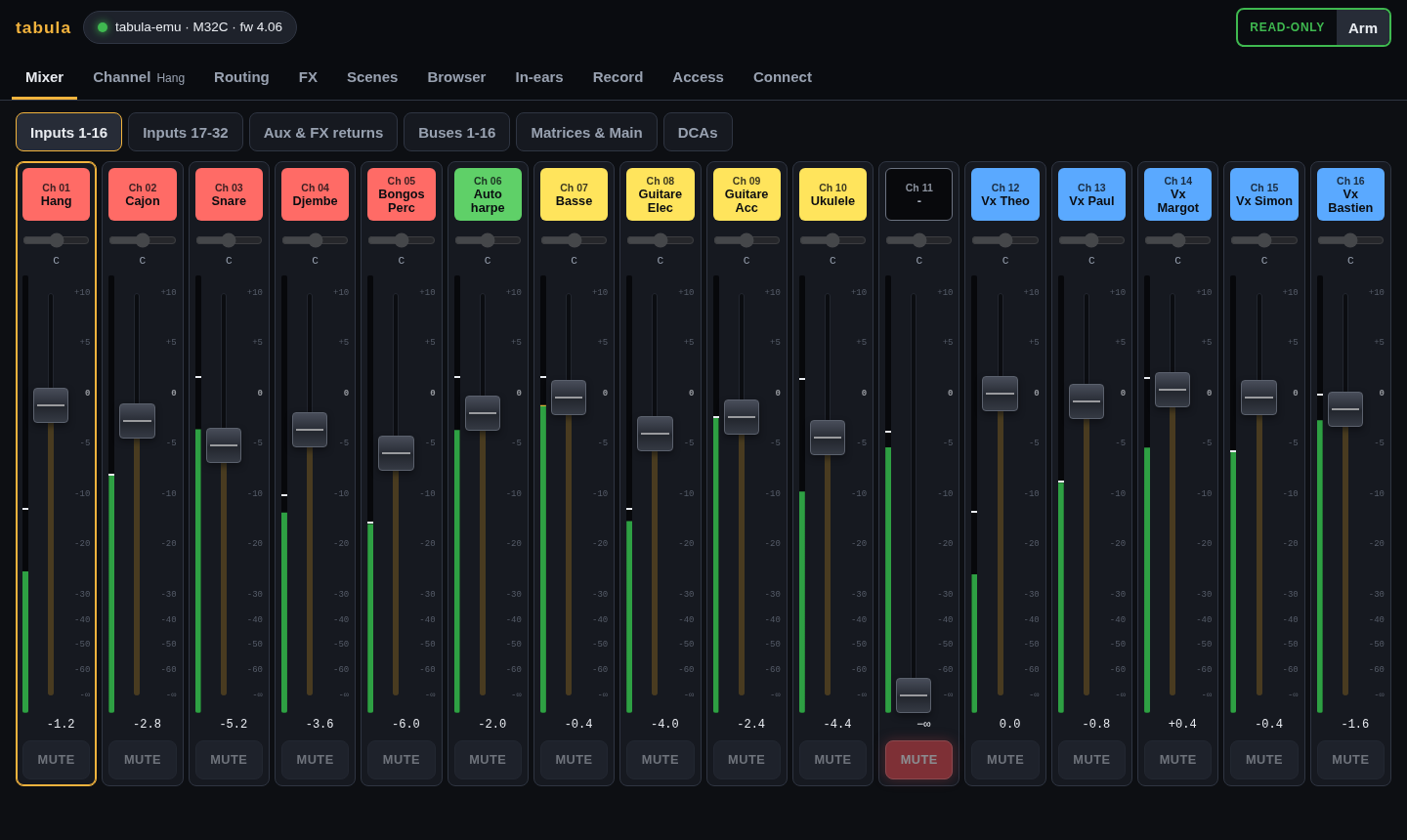
Banks of strips, as on the console: inputs 1-16 and 17-32, aux inputs and
FX returns, buses, matrices and mains, DCAs. Each strip has its scribble
strip (name and colour), meter, fader, mute and pan. Tap a scribble strip to
select it for the Channel page. Names of two words take two lines
(Guitare Elec), so the 12 characters the console allows show in full.
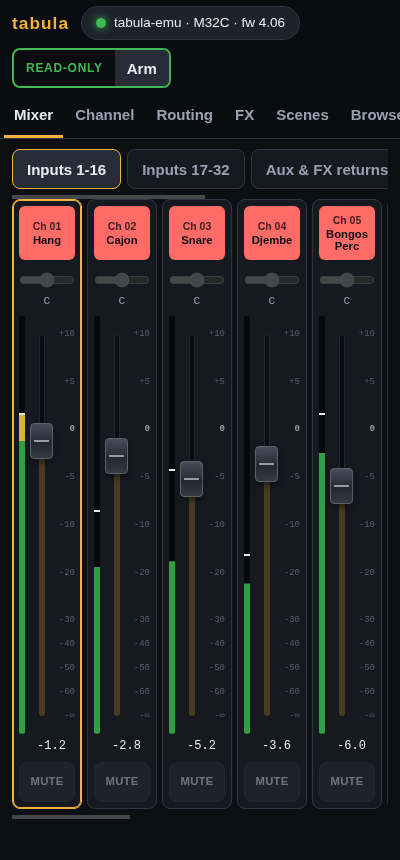
On a phone, the banks scroll sideways:
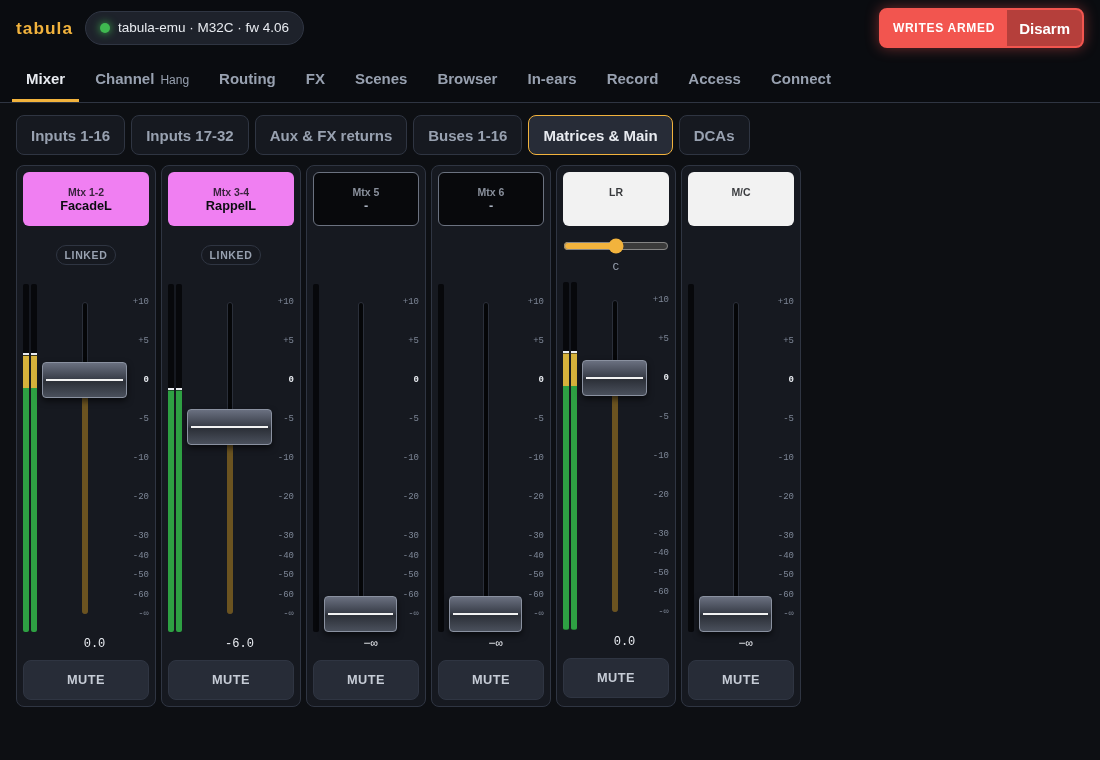
Linked pairs (/config/chlink, auxlink, fxlink, buslink,
mtxlink) show as one stereo strip, Mtx 1-2 or FX 1, with the meters of
both sides, when their faders and mutes follow each other (the link option
/config/linkcfg/fdrmute). Its fader and mute write to the odd strip, and
the console moves the even one with it, as it does for a linked pair on
its surface; pans stay per strip, on the Channel page. With the fader and
mute option off, the two strips stay separate. The Channel page of a linked
strip says which strip it is linked with.
Channel
Everything about one strip: configuration, preamp and delay, the EQ with its response curve, gate, dynamics, insert, main mix, sends with the bus names, DCA and mute groups, automix. Only the sections the strip has are shown. The EQ comes right after the preamp, so its curve is on screen when the page opens; the other sections fill balanced columns.
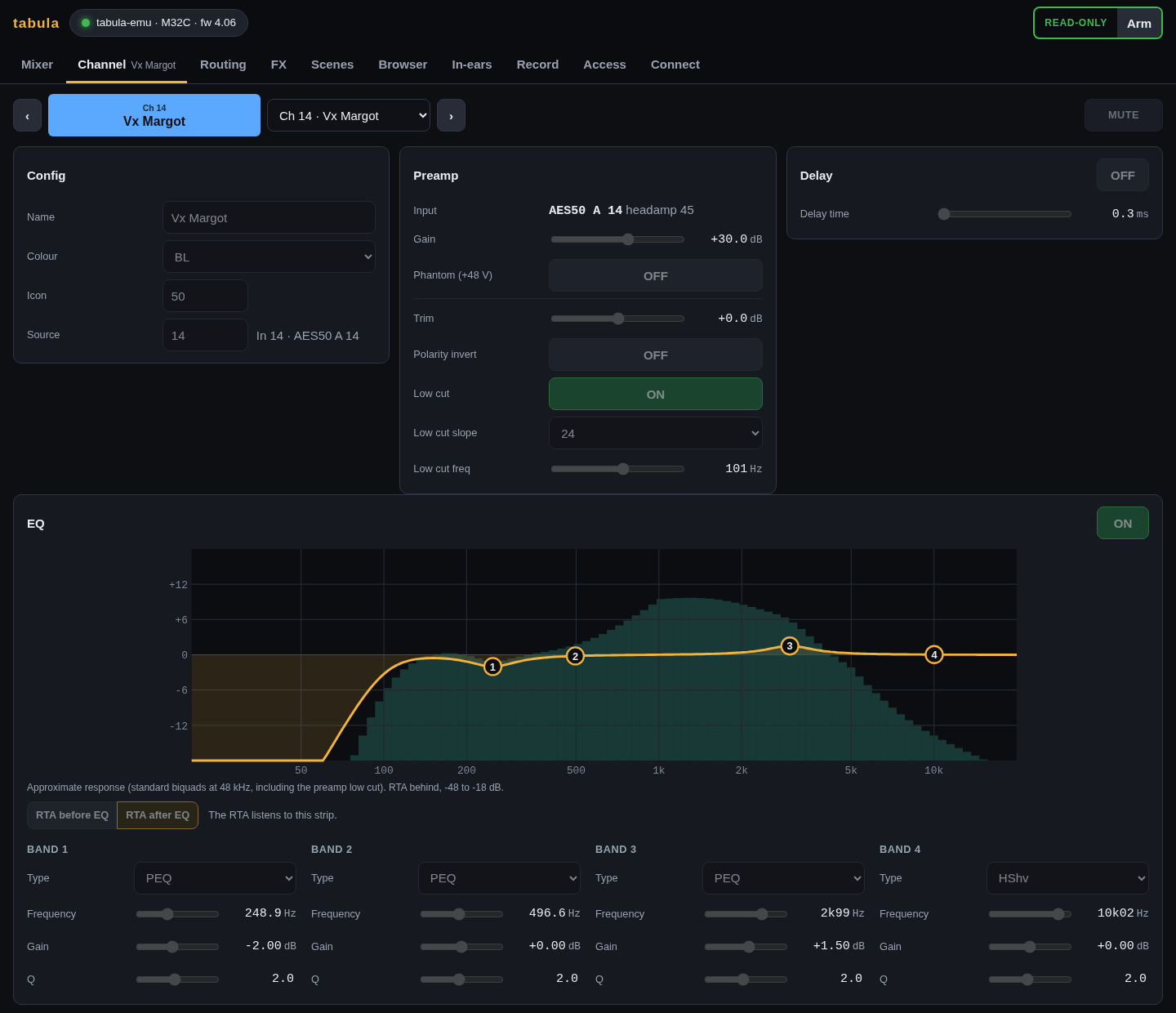
RTA. When the console’s RTA listens to the strip, its spectrum is
drawn behind the EQ curve. Two buttons under the curve point the RTA at this
strip, before or after its EQ (writes must be armed: it changes the console’s
RTA source, /-action/setrtasrc).
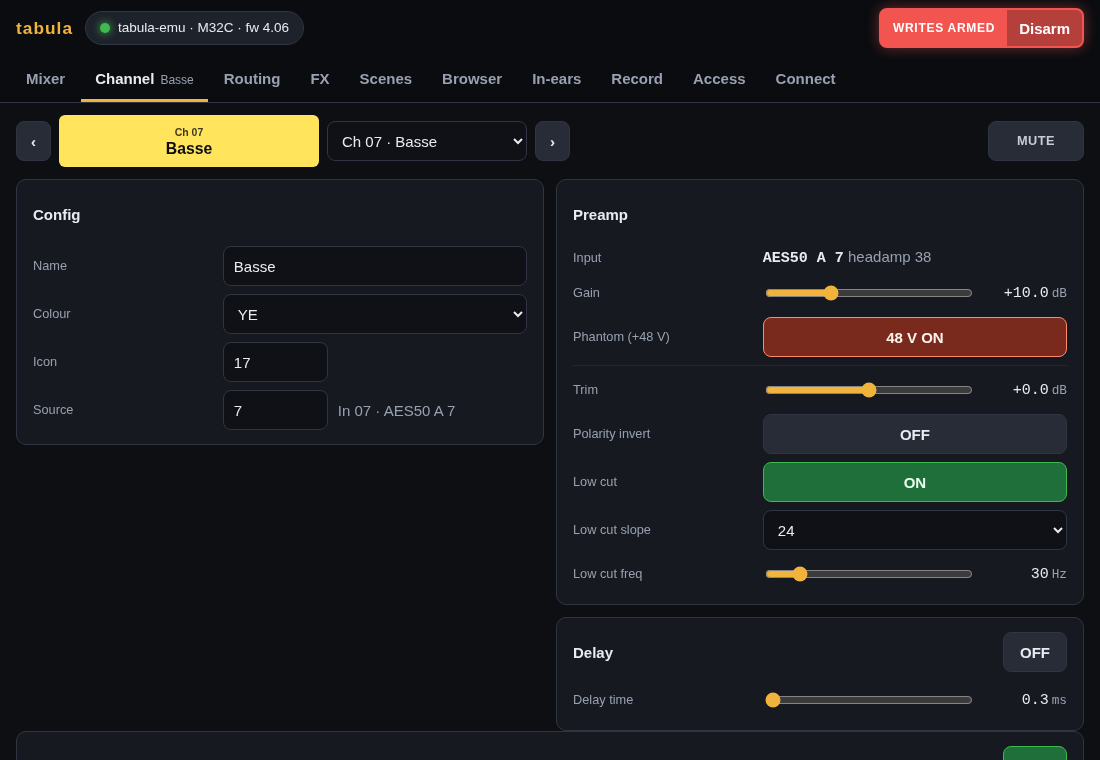
Headamp. For a channel (or an aux input) fed by a preamp, the Preamp
section starts with that preamp: which input it is (AES50 A 12: input 12
of the stage box on AES50 A), its gain and its +48 V phantom power. The
console tells which headamp feeds each channel (/-ha/NN/index), following
the channel’s source and the input routing; the gain and phantom are
/headamp/NNN/gain and phantom. Switching phantom power asks for a
confirmation, as it pops through the PA. When the input has no preamp
(card, user input, a bus…), the section says where it comes from instead.
The Source row of the Config section also shows the physical input
(In 12 · AES50 A 12).
Routing
Where the signals come from and where they go, in six views:
- Inputs: the input routing of the 32 console inputs and the aux inputs,
in blocks of 8, for live (REC) and playback (PLAY), with the console’s
REC/PLAY switch; then the input patch: for each input, where it comes from
(
AES50 A 12), its headamp gain and phantom, and the channels using it (Ch 12 Vx Theo, Ch 17 IEM Theo). - Outputs 1-16: the console’s outputs: source (with the bus, matrix or
channel name), tap point, polarity, delay, and where each output goes
(
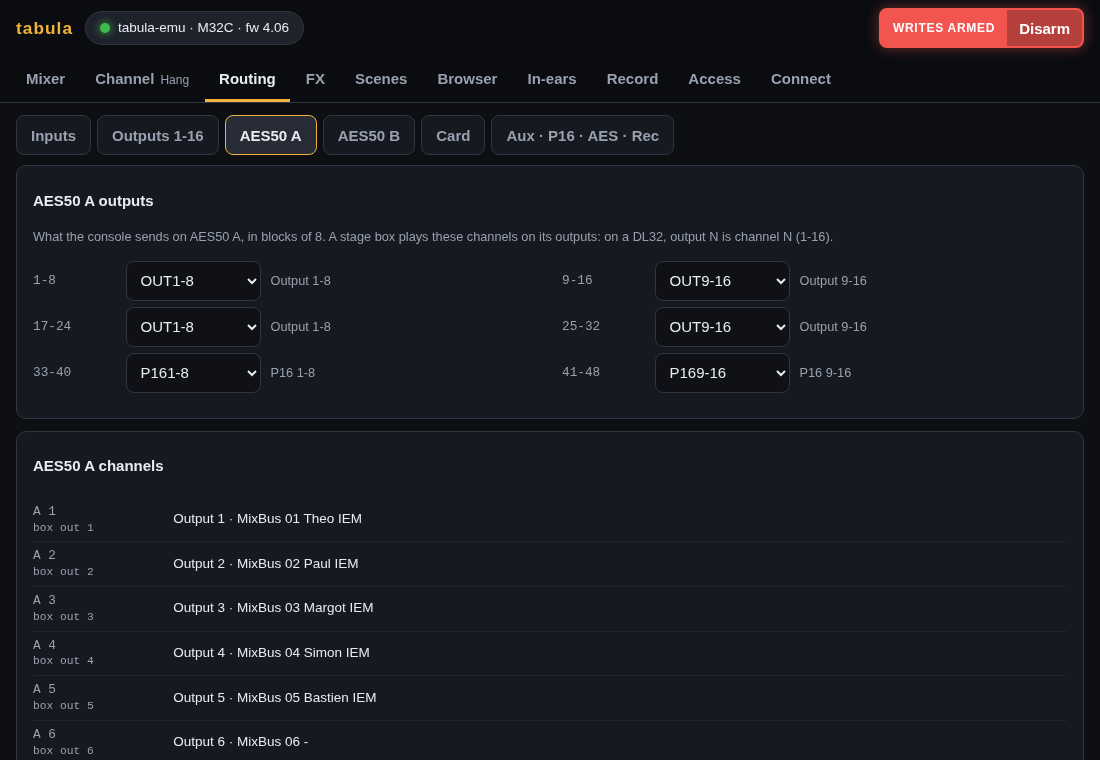
AES50 A 1, Card 17…). - AES50 A and AES50 B: what the console sends on each AES50 port, in
blocks of 8, then channel by channel what it finally carries
(
Output 1 · MixBus 01 Theo IEM). A stage box plays these channels on its outputs: on a DL32, output N is AES50 channel N (1-16), so the AES50 A view is the DL32’s output patch. - Card: what the console sends to the expansion card, track by track
(
AES50 A 12 · Ch 12 Vx Theo): what a computer records over USB. - Aux · P16 · AES · Rec: the aux outputs, the P16 (Ultranet) outputs, the AES/EBU and 2-track recording outputs, the local XLR outputs (on consoles that have them) and the user routing (single-channel patches used by the UIN and UOUT blocks).
Blocks are edited with the console’s own names (A1-8, OUT9-16, P161-8…),
with a plain description beside them; output sources are listed with the
names of their strips.
FX
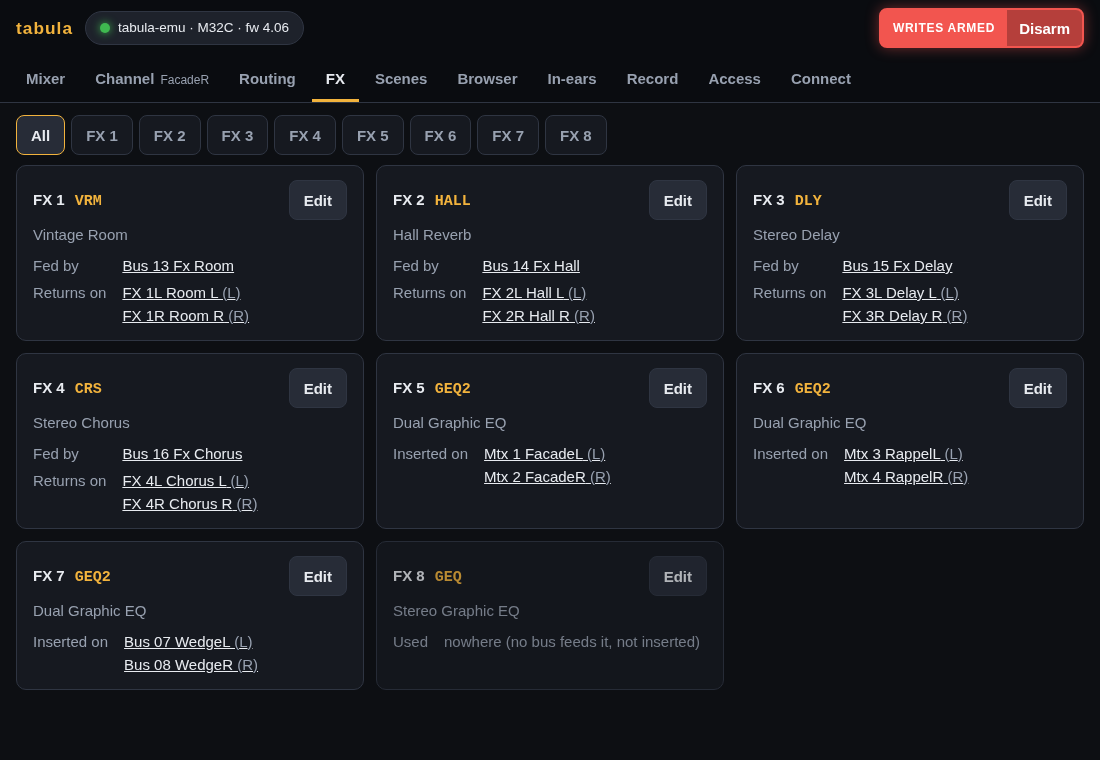
All shows the 8 effect slots: the effect loaded in each, and where it
is used. FX 1-4 fed from a bus say which (Fed by Bus 13 Fx Room) and the
FX returns they come back on; a slot inserted on a strip says which strips
(Inserted on Mtx 1 Façade (L), Mtx 2 (R), from the console’s /-insert).
The strip names link to their Channel page.
FX 1 … FX 8 open one slot: its effect (loading another one asks for a confirmation, as the new effect starts from its defaults), its sources for FX 1-4, and its parameters with their names, ranges and units as the console has them. Dual effects show their two sides side by side.
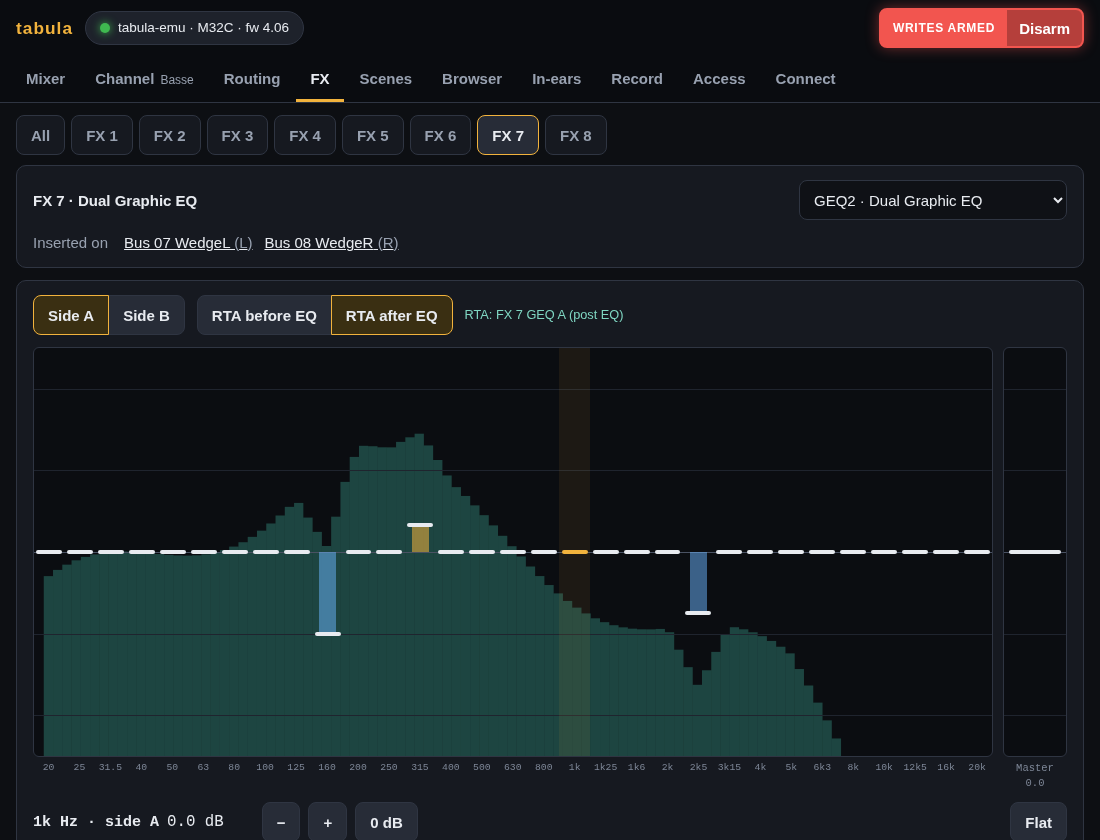
Graphic EQs (GEQ, GEQ2, TEQ, TEQ2) get a dedicated editor: 31 band faders and the master level, side A or B for the dual ones, with the RTA behind the bands. Drag a band up or down (Shift for fine moves, a touch never makes it jump); the arrow keys pick a band and move it by 0.5 dB; the selected band also has −, + and 0 dB buttons, and Flat resets every band after a confirmation.
The RTA shows the input of the graphic EQ, before or after it. Choosing
the RTA source changes the console’s state (/-action/setrtasrc), so it is
done only when writes are armed: opening the editor then points the RTA at
this EQ. Read-only, the editor shows the RTA of whatever source the console
has, and names it. The dB window follows the console’s RTA settings
(/-prefs/rta: 30 dB under the RTA gain, or 60 dB).
Scenes
The console’s library, in six tabs: scenes, snippets, channel presets, effect presets, routing presets and AES50/DP48 presets. Each tab lists the slots in use (tick Empty slots to see all 100), with their name and, for scenes, their note; the scene or snippet the console’s scenes page highlights is marked current (when the console shows scenes or snippets there).
- Recall a scene or snippet, or load a routing or AES50 preset, after a confirmation that says what changes.
- Load… a channel preset onto a strip, choosing the sections (headamp, configuration, gate, compressor, EQ, sends), or an effect preset into an FX slot.
- Save the current settings in a slot, with a name (and a note for scenes); a channel preset is saved from a strip, an effect preset from an FX slot. Saving over a used slot asks first.
- Open a slot (▾) to rename, copy it to another slot (not snippets: the console cannot) or delete it.
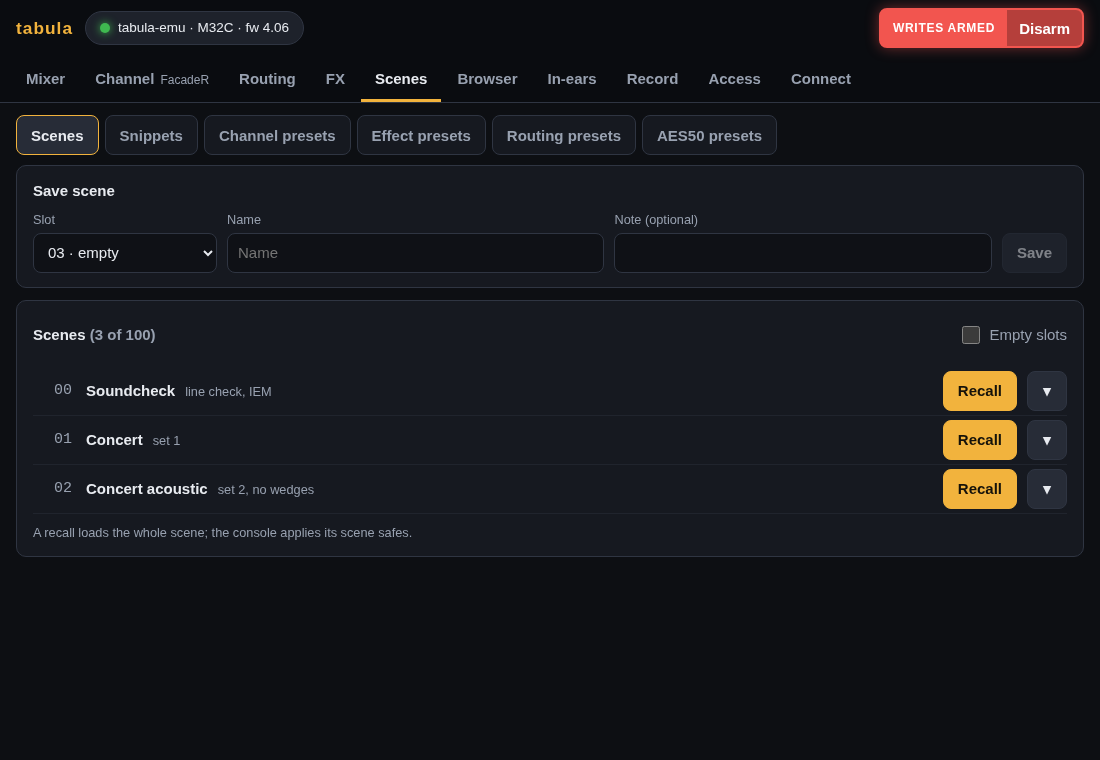
Every command changes the console, so the page needs armed writes. Recalls apply the scene safes and snippet filters on a console; the emulator does not apply them yet.
Browser
Every parameter of the console as a tree of its OSC paths: ch, then
01 (with the channel’s name), then config, eq, mix…, then the EQ
bands or the sends. Each row shows the node’s current values as the console
writes them, and opens into an editor of its fields and the nodes below it;
a value can also be typed as on the console (-6, 1k20, GATE). The
branches you open are remembered.
The filter searches paths and values (/ch/01/eq, Theo, GATE): the tree
keeps only the matches and opens down to them, as far as a couple of
hundred rows; the counts tell where the other matches are.
In-ears
The in-ear mix of one bus as a musician sees it on their phone: a desk of tall faders, one per source sending to the bus, with the bus volume on the right. The engineer can open any bus here; musicians get only theirs. See access.
Record
Record a show as a session, which keeps two things, as the page says above Start recording:
- Console, always: the console’s settings, not its sound. A snapshot of every setting when you start (a scene file that opens in M32-Edit), then every change, made on the console or here, with its time, and the markers you add (press M).
- Audio, when Audio tracks is on: the sound of the console’s USB card, one WAV file per track, in step with the console changes.
The session list says for each one how many console changes and markers it holds, and whether it has audio. Replay a session onto the console or the emulator, from a time or a marker, in real time (1×) or faster or slower (0.5× to 8×; writes must be armed): it moves the console as recorded, each change at its recorded time, and plays no sound. Export it for Reaper or Audacity to listen to the audio with the markers. See recording and the API for the session format.
Access
Make access links (with QR codes) for musicians, viewers and other engineer devices, and delete them to end that access. Set, change or remove the engineer password, and sign out the devices signed in with it. See access.
Connect
Find the consoles on the network (a broadcast that X32/M32 consoles and
tabula-emu answer) or type an address, connect and follow the sync.